This FAQ will help you resolve any technical issues you encounter while taking your IntelyPro Re-Education course.
How do I get to my Re-Education Course?
Your education log-in link will be in the email sent to you from IntelyCare. If you do not see it, check your spam/junk mail. Please note that you may now access your Re-Education courses in the same platform where you access your free education courses.
Can't find your Email from Clinical? Follow these instructions:
- Go to https://intelyproeducation.thinkific.com
- Go to My Courses; your free IntelyPro- Education course (s) and Re-education courses are now available to take in one place.
How do I reset my password?
- Go to https://intelyproeducation.thinkific.com/users/sign_in
- Select "Sign In" in the upper right corner.
- Select "Forgot Password"
- Enter the email address you use to log into your IntelyCare app.
- Check your email and follow the instructions to reset your password. Check your Spam folder for the reset email. You have 1 hour to reset your password before the link expires.
How do I navigate through the course?
- Once you sign into Thinkific, select the course you need to take. Depending on the size of your screen, there will either be a panel on the left that shows the lesson names or a button at the top left that opens the panel.
- If the panel is not visible, click the button. That will open the panel that shows all the lessons you can access for the course.
- At that point, you will be able to click on a lesson name to go directly to it. You will need to click on each title, in order to see the lessons. Each lesson must be 100% complete before going to the next lesson. Click complete & continue at the bottom of the screen to go to the next lesson.
- There will also be a lesson at the beginning of each course to explain how to navigate through it.
I think I'm done, but I can't get my certificate.
- A certificate is issued as soon as you have completed all lessons within your course! You will need to make sure to click Complete & Continue on every lesson to reach 100% completion.
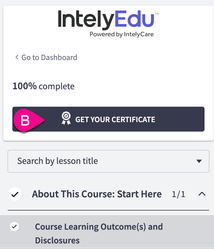
- After that, you can simply click Get your certificate to download it as a PDF.
How to Download or Access Your Course Certificates?
Learners can access their course certificates in two ways. This article will review both methods, which is the same across all platforms.
Option 1: Access Certificates Via Your Account Profile
a. After logging into Thinkific, click on the down arrow on the top right-hand corner of the screen next to your name.
b. Then click on “My Account”.
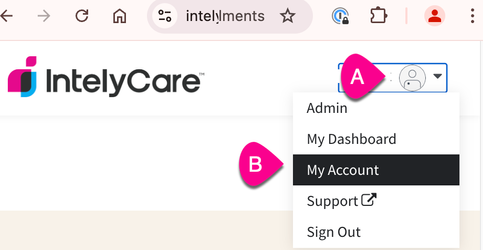
c. Once you are on the ‘My Account’ Page, click on ”Certificates” on the left-hand side menu.
d. Then click on “View “and follow the prompts for each certificate you wish to download.
Option 2: Access Certificates Via the Individual Course
a. After logging into Thinkific, double-click the specific courses under “My courses”.
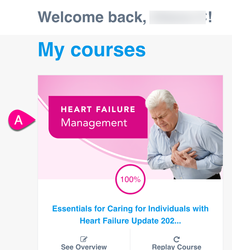
b. Once inside the course, click on “Get Your Certificate” on the top left-hand side of the screen and then follow the prompts to download it.
I've finished my Re-education course! What's next?
- At the End of the Course, download your Certificate of Completion. The nurse who assigned your education can also check your progression online.
- Contact the nurse who assigned the course to let him/her know that you have completed the course. If you have your certificate of completion, you should email the certificate also.
-
If you were placed on hold, the following must be done prior to picking up a shift:
- The Clinical Quality nurse must confirm completion of the education course.
- The Clinical Quality nurse must remove your hold and give approval to pick up shifts.
- The agents in the call center will not be able to remove this hold for you.
Comments
0 comments
Article is closed for comments.